


Architecture
The following picture shows the new architecture from 3.2.

The architecture changed in two ways:
- The built in FSD server is moved out from the code of EuroScope. It is available as a standalone executable.
- We separated the simulator engine, the EuroScope instance that runs the planes, from the pseudo pilots.
Architecture
The following picture shows the new architecture from 3.2.
The architecture changed in two ways:
- The built in FSD server is moved out from the code of EuroScope. It is available as a standalone executable.
- We separated the simulator engine, the EuroScope instance that runs the planes, from the pseudo pilots.
The first one is easier. This help us cleaning the code by not supporting two different kind of architecture. The EuroScope FSD server is the same lightweight server that was originally inside EuroScope. No permission checking, nothing special is built inside. Be sure to use it for your own environment, and not too often as public. But this way the structure is completely the same as the SweatBox version. It also made us possible to built the tower simulator – see below.
The second improvement makes it possible to run the scenario itself in a dedicated EuroScope session and meantime connect several other EuroScope as pseudo pilot. The pseudo pilot only connections does not simulate plane movements at all but sends instructions to the scenario runner one. The pseudo pilots can get /driver/ access and transfer of it like tracking the AC in a normal session. It is still possible to connect to the server as normal trainee client.
EuroScope FSD server
The server is installed on your computer along with EuroScope. You can run it from the start menu. It looks like this:

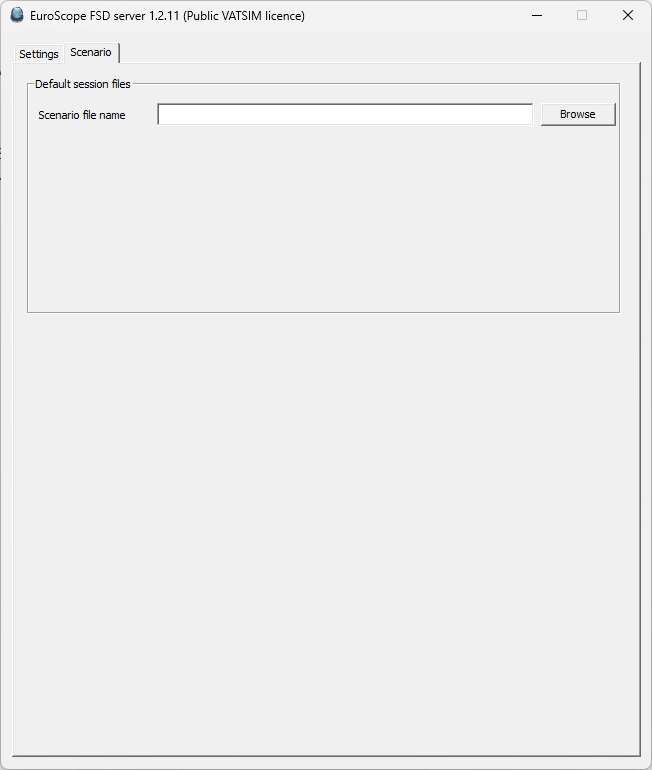
There are not too many things you can do with the simulator itself. Just run and minimize. You may check the messages if something is not straight.
The EuroScope FSD simulator is free to be used by the VATSIM community. But as it is a central item of a commercial product, it has active license checking. The server will connect to EuroScope WEB site and download license information from there. The license is “time” limited (we will update the validity from time to time), and connection number limited. The VATSIM license allows 2 controllers and 2 P3D connections. That is more than you were able to do with the built in FSD server, but still not enough to build a complete 360-degree tower simulator. The server has limited number of restarts without access to EuroScope servers for licensing data. Even though it is not planned, we have all the right to cancel the license upgrade of EuroScope FSD server any time without prior notice.
- Licence data – The first line contains the licence validity and the last time download.
- TS server port – The FSD server contains a TeamSpeak server for voice communication.
- Force fast update on the ground – It forces plane updates from 5 seconds to 1 second when they are on the ground.
- System messages – You may see what is happening around the server, who is connected and how.
- Simulated planes – A list of the planes currently simulated.
Note: Session value is always 0. The server can run multiple sessions parallel, but it is not utilized from EuroScope.
Note 2: If you would like to give access to your FSD server to external clients you need to open (and/or forward) the following ports:
- 6809 – Standard FSD port for EuroScope client connections. This will be used by the simulated planes as well.
- 6811 – This port is used by the P3D connector. The connector itself should run on the same machine as the P3D itself.
- 9988 (or any other specified in the dialog) – For TeamSpeak client connections.
Tower Simulator

Using the EuroScope FSD server it is possible to connect multiple P3D sessions that show the simulated traffic from tower view.

Using the P3D connector program, you can connect to the FSD server and a running P3D session. There may be as many P3D connector uses as needed for the size of the view. Note that it is limited to 2 in VATSIM licence.
To enable the most from the tower view you need an AI plane package like Ultimate Traffic (http://ut2.flight1.net/) or MyTraffic 2013 from Aerosoft (http://www.aerosoft.com/). These packages have several thousands of different aircraft types and liveries.
Once a connector is connected to the FSD server, the scenario runner is informed about it. That increases the position update from 1 update/5-6 seconds to 1 update/1 second. That enables a real smooth movement of the planes in tower view.
P3D Connector
The connector is installed on your computer along with EuroScope. You can run it from the start menu. It looks like this:

- Aircraft definition folder – It points to the P3D library that holds the available aircraft paintings. The connector scans all aircraft.cfg files under tis folder. The connector checks the types, the liveries, the engine positions, the lights, etc. When the simulator is looking for a specific type/painting planes from this folder will be created in P3D. You can enter two independent folders.
- Type/livery override file – It is just a backdoor. The file is a TAB delimited text file with AC type, livery and FSX model name. If the requested type/livery pair is in the file, then defined model will be created. It is much better to define the exact plane in the SIMDATA. That utilizes the full data of the aircraft.cfg files.
- EuroScope FSD server – the computer name or IP address of the FSD server.
- AC definition – An information window with the number of different aircraft types scanned.
- Callsign – Use this callsign when connecting to the FSD server.
- FrameRate – How many times the simulated planes should be updated in a second. Check the best value for your environment.
- Startup connect delay – The connector automatically connects to the FSD server as well as to FSX after startup. Define the delay in seconds here.
- Reconnect delay – If the connection fails then try connecting again after this number of seconds.
- Ground clamp – To specify ground clamp flag for objects.
- Add lights as SimObjects – This check box is experimental only.
- METAR entries – These are not used now. METAR data is set as global, not by stations.
- Pilot connection – It is possible to use the P3D session as active plane in the simulation. To specify that you would like to send plane data back to the server open the Pilot connection dialog.
In the lower area you can find a message LOG. You can check here how P3D connector translates events.
In the lower right side, you can see the actual connection states:
- Connection to FSD server
- Connection to P3D session
Use the buttons to connect or disconnect from the servers.
Note: The Save LOG is experimental only.
Pilot connection
When you press the Pilot connection button, you will have the following dialog to set your connection data:
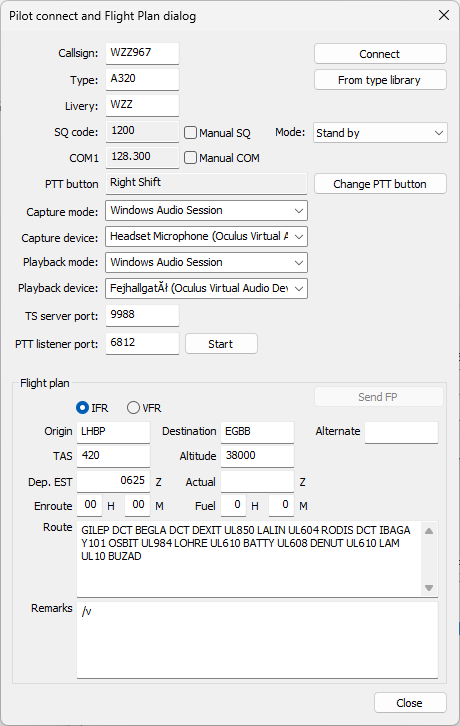
When you enable pilot connection then it will create a separate connection to the FSD server. Therefore, you must define all data for that:
- Callsign – the callsign of the pilot connection.
- Type – Aircraft type.
- Livery – Aircraft livery. You may select type/livery directly from library files.
- SQ code – Transponder code. It is normally read only, and the data is extracted from P3D. But you have the chance to override it.
- COM1 – Radio 1 frequency. It is normally read only, and the data is extracted from P3D. But you have the chance to override it. The value specified here will change the voice room in TeamSpeak when voice is connected.
- PTT button – Push to Talk button of the pilot connection.
- Capture/Playback device/mode – Set how to use you voice hardware.
- TS server port – How to connect to TeamSpeak server.
- PTT listener port – It is just experimental. If you need to use external device for PTT in your simulator.
- Flight plan area – Fill here all the plight plan data. It will be sent to all clients when pilot is connected.